 dubdubdub
AI writes it.
You read it — and so does your AI.
Plans, specs, summaries, transcripts, the Word doc a client sent — reading them has quietly become most of the job. Fast Document Reader is built for those hours: a fast, light Mac reader for Markdown, Word, OpenDocument, Korean HWP and plain text, opened the instant you click. It's easy to look at and never bogs your Mac down — however many files you leave open. It reads first and gets out of the way; when a line in your own Markdown is wrong, you fix it where you are, a block at a time, saved when you say so.
And the other reader is a machine. Two headless commands mean an AI never pays
to parse these files: --extract hands a Word, ODT or HWP file over as clean Markdown — a
14 MB Word report is 3.2 MB of XML if the model parses it itself and 94 KB here,
34× less to read — and a .hwp isn't a zip at all, so without this there is
nothing for a model to parse. --pdf goes the other way: any document to a page-faithful
PDF with no window, so a script produces the file instead of a person pressing ⌘P.
On the Mac App Store · Apple Silicon (arm64) only · macOS 13+ · free · MIT licensed
It's a text file.
Why is your fan on?
Because most document and Markdown apps are a web browser wearing a costume. That's the beat before the window opens, the memory that climbs the longer you leave it running, and yes — the fan, over some text. This one is a Mac app, plain and simple. Every number below was measured, not marketed.
| Opening | Instant. There's no loading screen, because there's nothing to load. |
| While you read | Uses no processor time at all. A session left running 44 hours used 2 min 41 s of CPU total — the fan stays off; your battery doesn't notice it's open. |
| Memory | Launches at ~15 MB. A 20 MB document brings it to about ~161 MB, and closing hands back 34–97 MB — it doesn't creep up over the day. |
| Big files | A 4,000-paragraph document opens right away, and the scrollbar tells the truth about its length from the first frame. |
| Diagrams | Flowcharts and sequence diagrams appear right in the page, even with no internet. Drawn once, instant every time after. |
| Images | Scroll past a picture and it quietly gives its memory back; scroll up and it's there. The page never jumps while you read. |
| Pictures in a document | Sized against the document's own page width, not your reading font — so ⌘+/⌘− change the text alone, and a picture follows the window as you resize it. One inside a table is measured against that table and stays in its cell. |
| Figures | Sit left, centred or right — wherever the document says. |
| Table borders | Followed edge by edge, so rows stop disagreeing about where a column ends. A line the author switched off stays off. |
| Pages | A Word, OpenDocument or HWP file is shown as real sheets at the size the document declares, with the running header and footer where the document puts them and the page number counting up. View ▸ Page Outline is the one switch: off, the document runs on as continuous text with no page edges, header, footer or page-break rule; on, you get the sheets, headers and footers together. Pinch to zoom scales the paper itself, the way a real viewer does. |
| Line & page numbers | An optional margin count — View ▸ Page Numbers (Line Numbers on a document with no pages, or with the page outline off). It's the document's own line, not the wrapped screen line, so a narrower window never renumbers the file, and a line inside a table gets no number of its own. |
| Jump to a line or page | Type the number and press Return, or press ⌘L to be asked. Escape, backspacing past the first digit, or a couple of seconds of silence forgets it — and it works whether or not the numbers themselves are on screen. |
| Printing | ⌘P prints the same pages you were reading, on the document’s own paper — so the print dialog’s Save as PDF is the PDF export. |
| Code | Colored the way your editor colors it, with a Copy button on every block. |
| Reading | Tabs — ⌘1–⌘8 jump straight to one, ⌘9 to the last, ⌥⌘←/→ between neighbours. Find (⌘F), bigger or smaller text (⌘+/⌘− or a trackpad pinch), automatic dark mode. |
| Editing | Right-click a block, or press E to edit · I to add below · U/J to move · D to delete. Your changes are yours until ⌘S. |
| Finding your place | T opens a list of every heading. Click one and the cursor goes there, ready to edit that section. |
| Editing big files | Only the block you changed is redrawn — 9 ms on a 64,000-character file, 29 ms on 1.2 MB. Undo stays instant. |
| Word & OpenDocument | Opens .docx · .docm · .dotx · .dotm · .odt read-only, shown as the author formatted it — headings, tables whose columns line up, images and equations even inside a cell, footnotes, comments, tracked changes and right-to-left text. Want to change one? One click hands it to your editor of choice. |
| HWP (Korean) | Opens .hwp · .hwpx read-only — Korea's dominant document format, rendered natively through the same engine as Word, without needing Hancom's suite. Tables, images, styles, footnotes and equations arrive as authored, headings build a table of contents so T works the way it does on Markdown, and its page count is measured against Hancom's own viewer — close, though not page-for-page identical. |
| Extract for an AI | --extract turns a .docx, .odt or .hwp into clean Markdown from the command line — headless, so an AI reads it without spending its budget parsing the file. |
| Print to PDF | --pdf renders any document straight to a PDF file with no window — the same pages the reader shows and ⌘P prints. |
| Plain text | Opens .txt · .csv · .log — and the config files you open all day, .conf · .cfg · .ini · .env · .vars — shown exactly as written. Files from Windows or Linux arrive readable — saved back in the encoding they came in. |
| Finder preview | Press space on a .md or .hwp and the Quick Look preview is drawn by this reader's own engine, so a glance and an open show the same thing. Without Hancom's suite installed, a .hwp has no preview at all otherwise. |
| Works on | Macs with Apple silicon (M1 and later), macOS 13 or later. |
| Price | Free — and the source is public, so every number here is something you can check yourself. |
What it looks like
Real screenshots. No mockups.
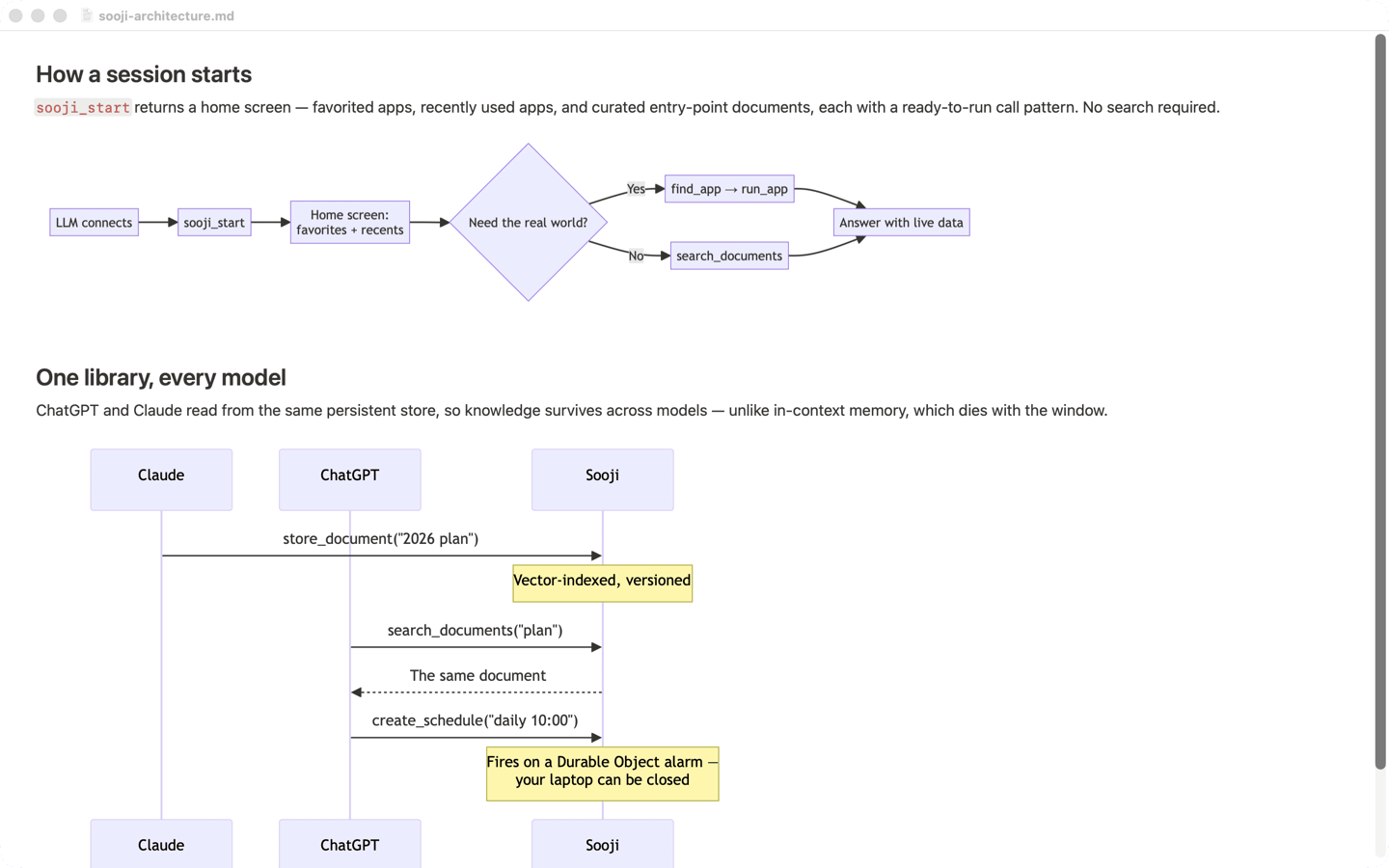
Diagrams show up, even offline
Flowcharts and sequence diagrams appear right where they belong — on a plane, on the subway, anywhere. Each one is drawn a single time, then it's instant forever, and it stays sharp however far you zoom in.
Pictures, without the weight
Images look sharp, but the ones you've scrolled past quietly hand their memory back. Your place on the page never shifts while you're reading.

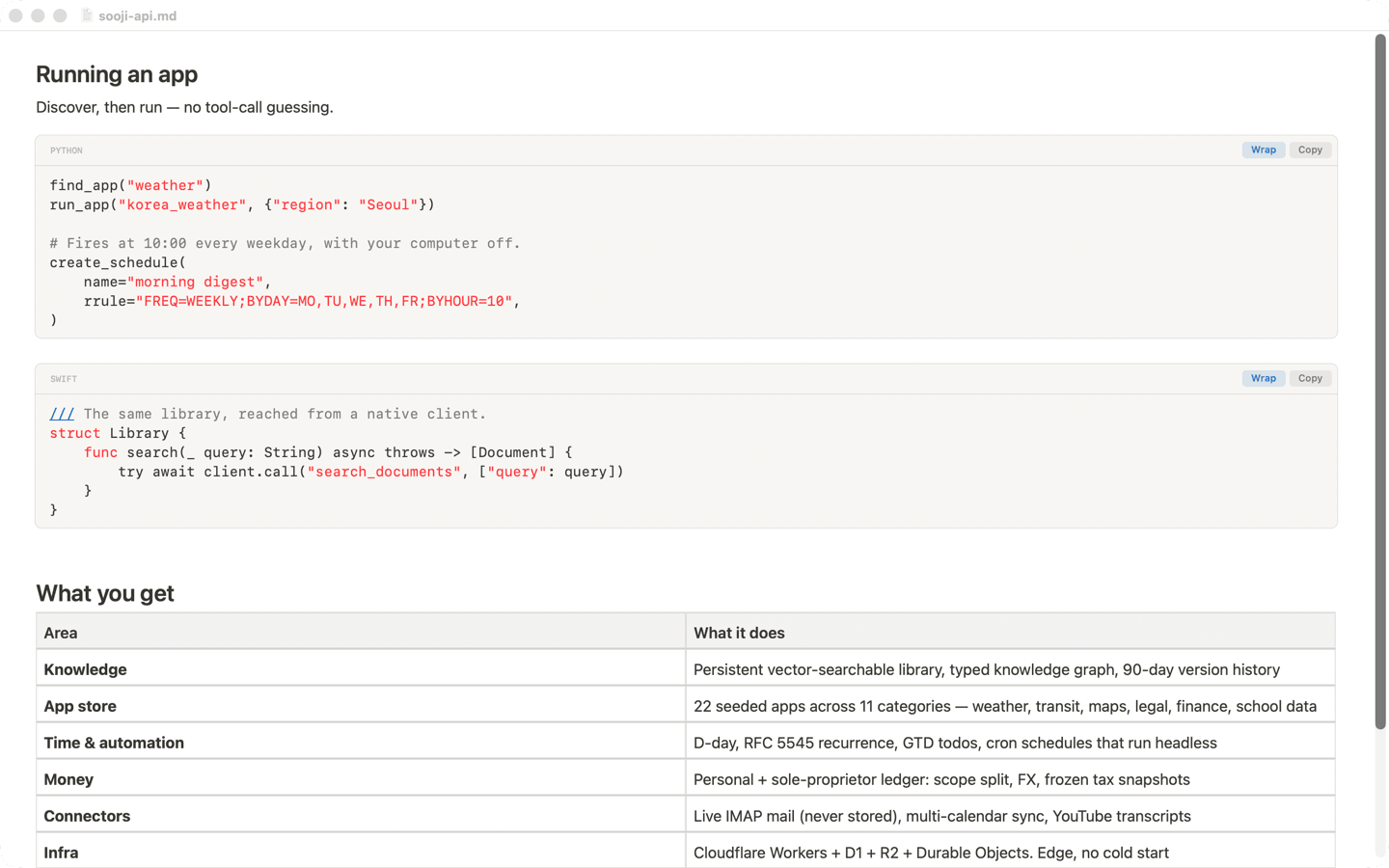
Code you can actually read
Code is colored the way your editor colors it, on its own card, with a Copy button on every block and a switch for long lines. Thirty-four languages, under the names you actually type — yml, golang, c++, sh, tsx.
Built for the way
you actually read
Reading a long document is two things over and over: moving through it, and pulling a piece out of it. Both are one keystroke — or one click — here.
Jump by the document's own units
The arrow keys move you by the units a document is actually made of, and the modifier decides how far you go. A soft band follows the line you're on, so a glance finds your place after a scroll — and the page holds still while the cursor moves inside it, following only when the cursor would leave the screen.
| ⌘↑ ⌘↓ | Previous / next heading — step through the document's own outline. |
| ⌥↑ ⌥↓ | Page up / down, with a few lines of overlap so you keep your place. |
| fn↑ fn↓ | Previous / next top-level heading — the document's coarse outline.Only the shallowest rank the document actually uses, so a long report steps chapter by chapter instead of through every sub-heading. |
| fn⌘↑ fn⌘↓ | Straight to the start or end of the document. |
| ⌘← ⌘→ | Start / end of the line. |
| ⌥← ⌥→ | Previous / next sentence. |
| fn← fn→ | Previous / next paragraph.A whole table or code block counts as a single stop, so you step over it instead of through it. |
| ↑ ↓ ← → | Move the reading cursor one line or one character. |
| ⇧ + any of these | The same move, selecting as it goes.Jump three paragraphs with ⇧fn→ and you have those three paragraphs selected, ready to copy. |
| ⌘L | Jump to a line or page number.Or skip the dialog — just type the number and press Return. |
| ? | The full list, inside the app.Every shortcut here — plus find, zoom, tabs and the mouse ones — without leaving the document. |
Take a section without selecting it
Dragging a cursor across three screens to copy one section is the other half of the job. So the left margin does it for you — click it, and the block beside it is on your clipboard, highlighted so you can see exactly what you got.
| Beside a heading | The whole section — down to the next heading of the same rank or higher.Sub-headings underneath come along; the next sibling section never does. |
| Beside a code block | The raw code — what you'd paste into a terminal, not the rendered card. |
| Beside anything else | That paragraph, list or table, on its own. |
| Right-click a block | Copy · Open · Edit · Add Below · Move · DeleteEditing opens that block's Markdown source. Nothing reaches the file until ⌘S. |
Change a block without leaving the page
The same five keys work wherever the reading cursor is, so fixing a line or moving a section never means picking up the mouse. Every step is one undo, and the page keeps your place — only the block you touched is redrawn, which is why it stays instant in a file where other apps stall.
| E | Edit this block's Markdown source. |
| I | Insert a new block below it. |
| U · J | Move it up · down, a step per press. |
| D | Delete it — asked first, and undoable after.With a selection, everything it touches goes at once. |
| T | A sidebar of every heading. Click one and the cursor lands there, ready to edit that section.It stays out of the way entirely in a document that has no headings — including a Word or HWP file, whose headings it reads from the document's own styles. |
| ⌘S · ⌘N | Save · new file.Every edit lives in the open document until ⌘S — that is the one moment anything is written to disk. |
What's actually inside
Pure Swift, AppKit and TextKit — no Chromium, no Electron, no web runtime for the text.
Diagrams are mermaid and formulas are KaTeX, both bundled in the app and snapshotted once
to a vector PDF cached by content hash — so $$…$$ and flowcharts alike render
with no internet and stay sharp at any zoom. Code is colored by a single left-to-right
scanner across thirty-four languages, which is why a URL inside a string never turns the
rest of the line into a comment. Off-screen media drop their pixels while keeping their
exact layout size, so nothing reflows and the scroll bar never swings. The whole document is
laid out up front — that is what makes the scroll bar honest from the first frame — while
an edit re-renders only the block it touched, which is why undo stays instant in a file
where other apps stall. Text files are read as the encoding they were written in and
written back the same way, so a document made on Windows doesn't quietly become something
else. Word, OpenDocument and Korean HWP all flow through one shared office renderer — HWP is
parsed by rhwp, a Rust engine compiled straight into the app, so .hwp and
.hwpx files render on the Mac without Hancom's suite. One renderer is also why
a fix reaches all three at once: a graphic is scaled by the reading column against the
document's own page width and re-solved on every reflow, which is what makes pictures track
the window rather than the font size, and each table border is carried as one of three
states — drawn, switched off, or never mentioned — instead of a yes/no, so a document that
said nothing renders exactly as it always did. Zooming follows the same document-first rule:
a paged document scales like paper under a pinch or ⌘+/⌘−, while Markdown and plain text
redraw once at the size you chose instead of stretching a raster view. MIT licensed —
read the source and check any
claim on this page.
Need help, or found a bug?
Fast Document Reader is built and supported by DubDubDub Corp.
Report an issue
Bugs, crashes, and feature requests go on GitHub Issues — the fastest way to reach us.
Open an issue →On the Mac App Store
Free, one click to install, and it keeps itself up to date. The source is public too — if you build Mac apps, it's a minute's work to have it running from a clone instead.